

What is Sendy?
Sendy is a newsletter application that runs along side your website. It is purchased with a one-time fee and allows for unlimited subscribers and email sending (when intigrated with Amazon SES email service.)
Contact CeJay Websites to find out how you can use Sendy too!
Lists
Managing Mailing Lists
Mailing lists contain the email addresses of people who receive newsletters.
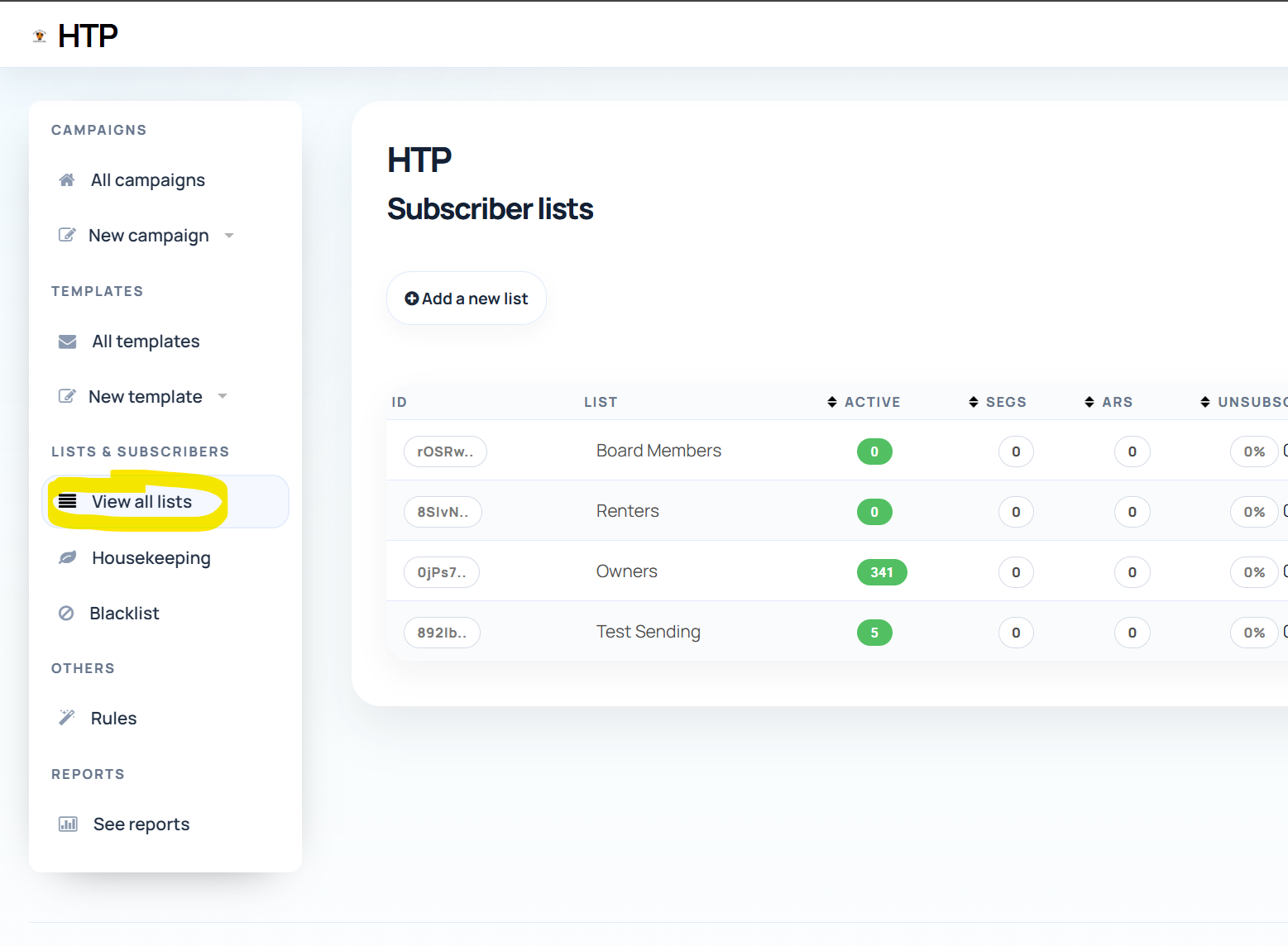
From the Sendy dashboard, select View all lists.
You will see the mailing lists available.
Viewing a List
Click the name of a list to view its subscribers.
The subscriber list shows information such as:
- Name
- Email address
- Subscription status
You may also see whether someone has unsubscribed, bounced or reported an email as spam.
Important
Do not re-subscribe someone who has intentionally unsubscribed from the newsletter.
Sendy keeps track of unsubscribes and email delivery problems to help prevent messages from being sent to people who should no longer receive them.
Manging Subscribers
Adding a Subscriber
Open the appropriate mailing list and choose Add subscribers.
Enter the person’s information, including their:
Name
Email address
Save the subscriber when finished.
Always double-check the email address for spelling errors.
Editing a Subscriber
Open View all lists and select the appropriate mailing list.
Find the subscriber you want to change.
Click the subscriber’s email address or the available edit option to open their information.
Make the necessary changes and save them.
Removing a Subscriber
If an email address was added by mistake or needs to be permanently removed, locate the subscriber in the mailing list and use the available delete option.
Deleting and unsubscribing are different.
An unsubscribed person should normally remain marked as Unsubscribed. This allows Sendy to remember that the person requested not to receive newsletters.
Importing a List of Subscribers
Sendy can import subscribers from a CSV file.
This is useful when you have a spreadsheet containing many email addresses.
Open the appropriate mailing list and select the Import option.
Follow the instructions on the screen to upload the CSV file and match the columns in your file with the appropriate Sendy fields.
Before importing, make sure the list contains people who should legitimately receive Holiday Travel Park email.
Viewing Newsletter Results
Sendy keeps a report for each newsletter that has been sent.
From the dashboard, locate the Campaigns area and find the newsletter you want to review.
Open the campaign’s Report.
The report provides an overview of what happened after the newsletter was sent.
Sent
This shows how many subscribers the newsletter was sent to.
Opens
Opens tells you how many recipients opened the newsletter.
The open rate is the percentage of delivered newsletters that were opened.
For example, if 100 newsletters were delivered and 60 recipients opened the newsletter, the open rate would be approximately 60%.
A note about open rates
Open tracking is useful for comparing newsletters, but it is not perfect. Some email programs automatically load or block tracking information, so an open should not always be interpreted as proof that someone actually read the entire newsletter.
It is generally more useful to compare the open rate of one Holiday Travel Park newsletter with previous newsletters.
Seeing Who Opened a Newsletter
In the campaign report, the Opens statistic can be used to see more information about the people who opened the newsletter.
Depending on the tracking settings used for the campaign, Sendy can show the individual subscribers who opened it.
This is useful when you want to see which residents or subscribers are engaging with a particular newsletter.
Clicks
Clicks show when recipients clicked links contained in the newsletter.
For example, if the newsletter contains a link to:
- The Holiday Travel Park website
- An event page
- A registration form
- A document
- Another website
Sendy can track activity on those links.
The campaign report includes information about which links received clicks and how many people clicked them.
Clicks can be particularly useful because they indicate that someone did more than simply open the newsletter — they interacted with its content.
Bounces
A bounce means that an email could not be delivered.
Common reasons include:
- The email address no longer exists
- The address was entered incorrectly
- The recipient’s email server rejected the message
- The recipient’s mailbox has a delivery problem
Sendy records bounced addresses in the campaign report.
You can view the bounced subscribers to determine which addresses caused problems.
You generally do not need to manually remove bounced addresses simply because they appear in a report. Sendy keeps track of delivery problems so that bad addresses can be handled appropriately.
If you recognize an obvious typo in an address, such as:
instead of:
you can correct the subscriber’s address if you know the correct address.
Unsubscribes
Every newsletter includes an unsubscribe option.
When someone uses it, Sendy records that person as Unsubscribed.
Do not manually add or reactivate that person unless they specifically ask to subscribe again.
The campaign report shows how many people unsubscribed after receiving a particular newsletter.
Spam Reports
A spam report occurs when a recipient tells their email provider that the newsletter is spam or junk mail.
Sendy records these complaints.
A small number can occasionally occur, but repeated spam complaints should be investigated.
Do not manually re-add someone who has reported a newsletter as spam.
Understanding the Most Useful Statistics
When reviewing a Holiday Travel Park newsletter, concentrate primarily on:
Open Rate – How many recipients opened the newsletter.
Clicks – How many recipients interacted with links in the newsletter.
Bounces – Messages that could not be delivered.
Unsubscribes – People who chose to stop receiving newsletters.
Spam Reports – People who reported the newsletter as unwanted email.
For most newsletters, these numbers provide a quick picture of how successfully the newsletter reached and engaged its audience.
Viewing Individual Subscriber Activity
Many statistics in a Sendy campaign report can be opened to see the subscribers associated with them.
For example, you may be able to view the people who:
- Opened the newsletter
- Clicked a link
- Unsubscribed
- Bounced
- Reported the message as spam
This can be useful when troubleshooting an individual resident’s email or reviewing newsletter engagement.
Exporting Results
Sendy allows subscriber information associated with campaign activity to be exported as a CSV file.
For example, you can export subscribers who:
- Opened the newsletter
- Clicked the newsletter
- Bounced
- Unsubscribed
CSV files can be opened in Microsoft Excel, Google Sheets or other spreadsheet programs.
A Few Important Rules
Keep these guidelines in mind when working with the newsletter system:
- Do not re-subscribe someone who has unsubscribed.
- Do not re-add someone who reported a newsletter as spam.
- Check email addresses carefully when adding or editing subscribers.
- Do not delete unsubscribed subscribers simply to clean up a list. Their unsubscribe status is important.
- Protect your Sendy password. Do not share your login credentials with people who have not been authorized to manage Holiday Travel Park newsletters.
If you are unsure whether a subscriber should be added, removed or reactivated, check with the person responsible for Holiday Travel Park’s newsletter system before making the change.